Screening integrity, from browser to desktop.
Every Simplehire screen runs inside a monitored browser session and includes desktop risk checks. Recruiters can also require a paired second device when they need a wider view. All recorded signals are flagged for a person to review.
Proctoring, in detail.
A controlled screening session recruiters can trust.
Every Simplehire screen runs inside a monitored browser session, so the report shows how the candidate completed the assessment — including focus changes, tab activity, copy-paste attempts, and other integrity signals.
Full-screen mode
The screen runs in enforced full-screen mode. Leaving full-screen is detected and reflected in the report.
Copy-paste control
Copy, cut, and paste actions are restricted or flagged during the session, so answers are not simply pulled from elsewhere.
Tab and window activity
Tab switches, window changes, and focus loss are monitored during the screen and included in the integrity summary.
Shortcut control
Common shortcuts used for copy, search, or switching are blocked or flagged to reduce workarounds.
Activity report
Every integrity event is timestamped and shown in the screening report, giving recruiters clear context before submission.
Included on every tier
Proctoring is included across Basic, Adaptive, and Advanced screens, so every report carries integrity signals.
The goal is not surveillance. The goal is submission confidence.A clean screening session helps recruiters submit candidates with proof, and flagged activity helps teams review concerns before sending the profile to the client.
Desktop monitoring for AI interviews.
See the interview environment the browser cannot.
Simplehire Proctor helps candidates clear risky applications before they begin, then records relevant high-severity desktop findings for recruiter review.
- Candidate-guided setup
- Background monitoring
- Time-based evidence
- No screen recording
Available for supported Windows interviews
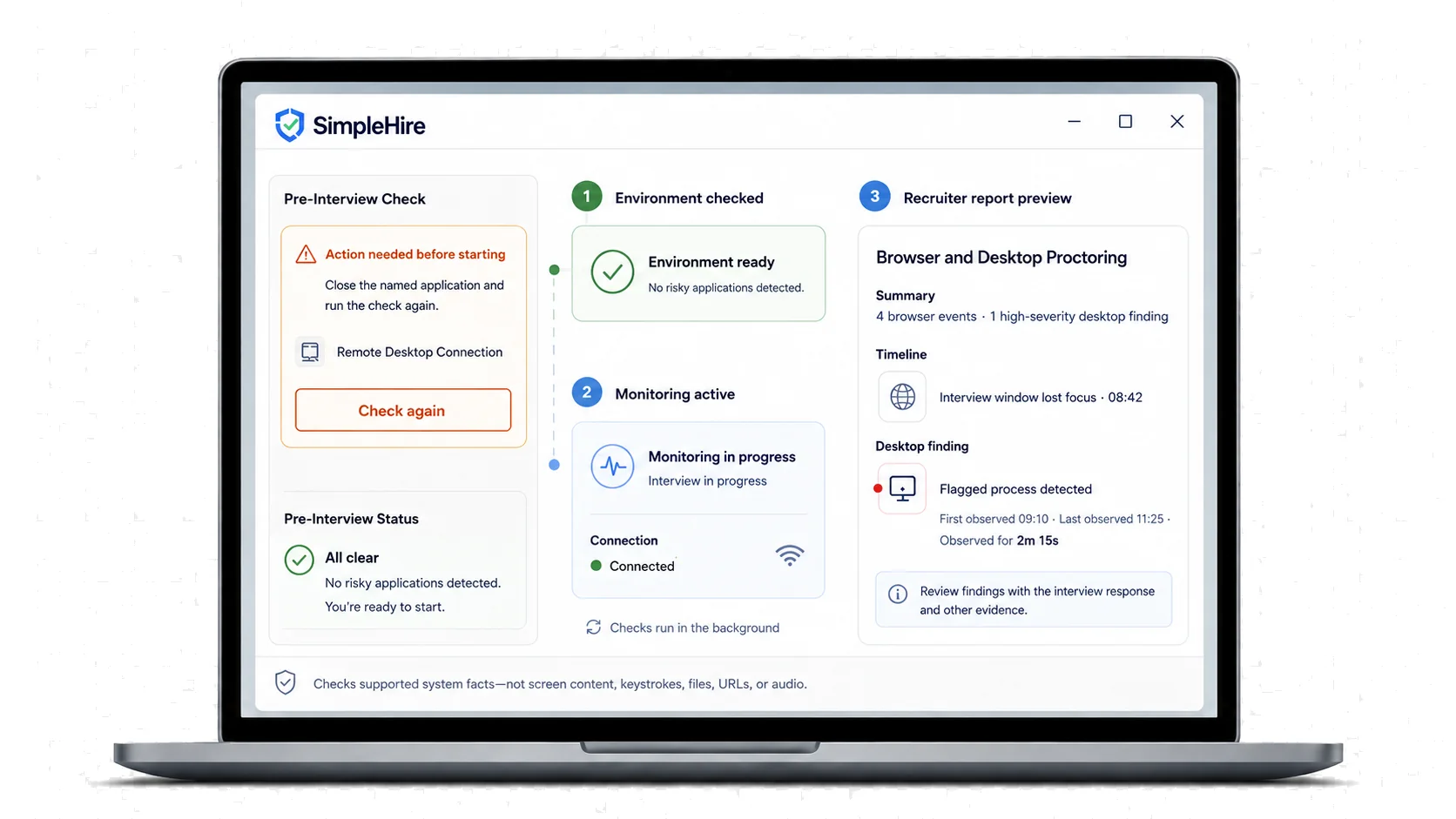
Before: clear named blockers
Supported high-risk applications must be closed and re-checked before the interview starts.
During: interview keeps moving
Desktop checks run in the background. Findings are recorded without interrupting.
After: review evidence with context
Recruiters review high-severity desktop findings alongside browser events and interview context.
Second-device proctoring.
See the interview beyond the screen.
A secure side-camera view helps reviewers verify the candidate, workspace, and interview environment — without interrupting the experience.
- Scan the secure QR
- Position the phone
- Start with both views connected
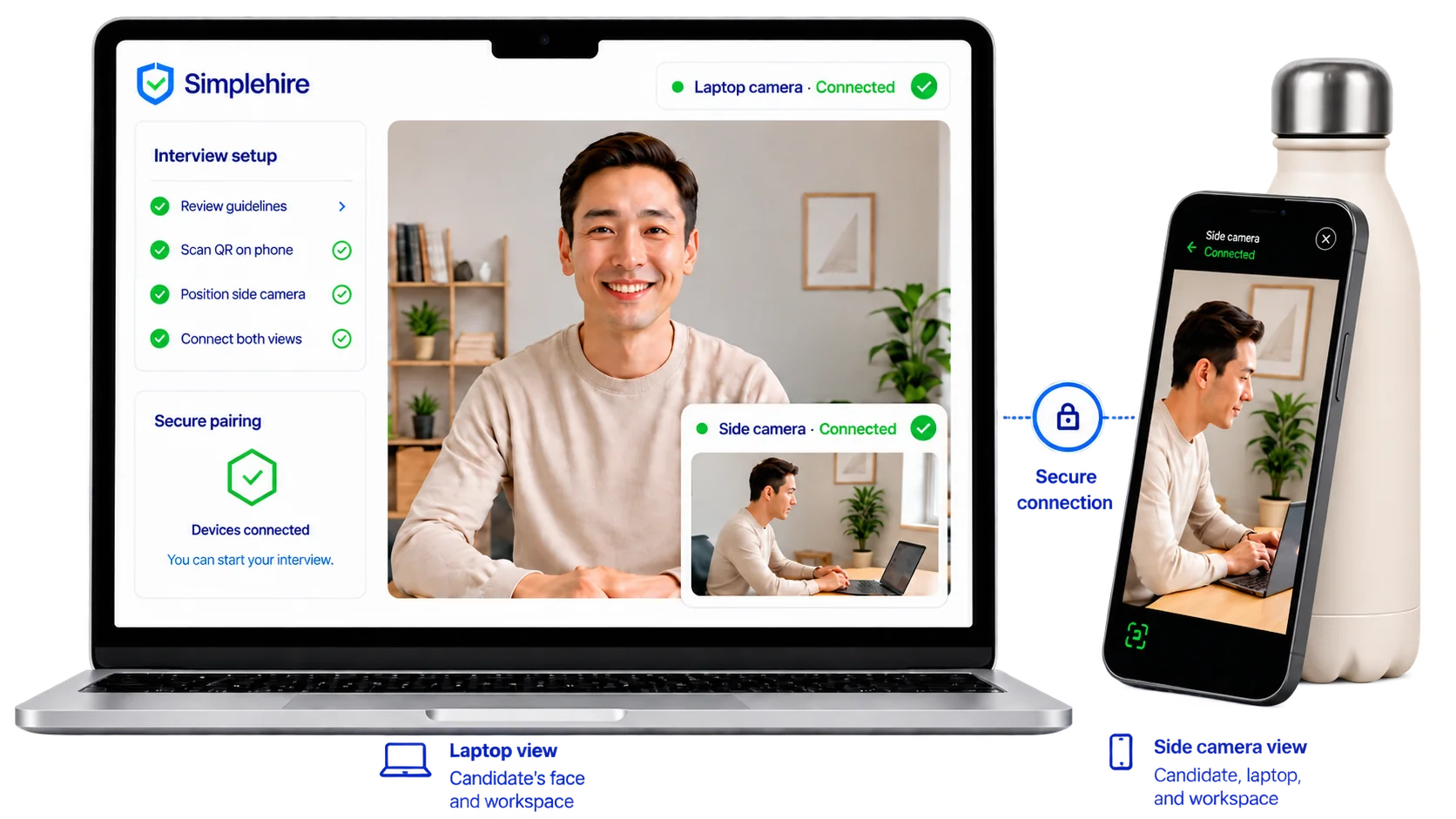
Set up in under a minute
Candidates pair their own phone from the browser. Nothing to install, no account to create.
Checked before the interview starts
Lighting, framing, and camera angle are verified up front, so every candidate begins from the same baseline.
Reviewed by a person, not an algorithm
Findings from both views are cross-checked and attached to the evidence your team reviews.
Verified hiring for the AI era.
Simplehire is the trust layer between candidates and the companies that hire them. Candidates prove who they are and what they can do, and carry a verified profile they own. Hiring teams screen with evidence instead of resumes.
Screen before you submit
A verified pre-screen — role-based voice interview, real skill evidence, proctoring and an optional ID check — before any candidate reaches your client panel.
Explore the screening productGet your verified profile
Prove your skills, identity and work authorization once. Own a portable verified profile that travels with you — so you stand out and skip repeat screenings.
For job seekersAbout Simplehire
Simplehire Technologies Inc is built in San Francisco by a team with 12+ years in US staffing — the people who watched resume fraud, proxy interviews, and work-authorization surprises burn panel hours from the inside. Candidates own their verified results; companies buy evaluation, never the candidate's data.